Cursor中code/cursor命令怎么用? Cursor基于VSCode的编辑器命令详解
作者:本站作者 人气:大家有没有遇到过这样的情况:在终端里找到一个文件或者文件夹,想直接用代码编辑器打开,却还得费劲鼠标操作?这时候,命令行工具就派上用场了。今天咱们聊聊 Cursor 的命令行工具,这可是个效率神器,能让你轻松搞定各种代码编辑任务。
Cursor 是一个基于 Visual Studio Code 的现代化代码编辑器,既继承了 VS Code 的强大功能,又加入了自己的特色。它的命令行工具可以通过 cursor 命令快速打开文件、对比文件、安装扩展等等,非常方便。下面咱们就来详细说说怎么用。
Cursor 是一款基于 Visual Studio Code (VS Code) 的现代化代码编辑器,所以它继承了 VS Code 的强大功能,如本文要介绍的 code 命令。
在 Visual Studio Code 中,code 或 cursor 命令是一个命令行工具,用于快速打开 VS Code 并执行一些与代码相关的操作。
code 命令直接可以帮助开发者从终端或命令提示符中直接启动 VS Code 或处理特定的任务。
最常用的方式就是使用 code 或 cursor命令直接从命令行中打开文件目录,此时需要先安装 code 命令。
Cursor 支持将终端启动命令设置为 code 或 cursor,以便快速启动编辑器,如果本地已经安装了 VS Code,code 命令一般用在 VS Code 中,Cursor 使用 cursor 命令。如何启用 Cursor 的命令行工具?
启用 Cursor 的 code 命令 非常简单
1、打开命令面板
macOS 系统快捷键:⇧⌘P(command + shift + p)Windows/Linux 快捷键: Ctrl + Shift + P2、搜索安装命令
搜索安装 >shell command:
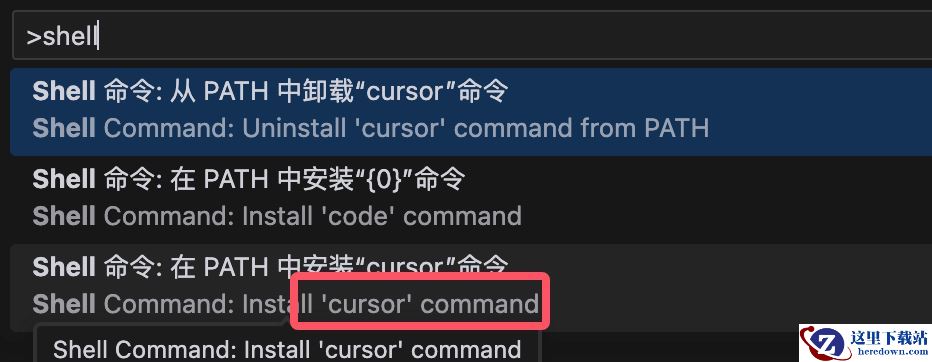
然后选择 在 PATH 中 安装 "cursor" 命令 - Shell Command: Install 'cursor' command in PATH 即可为系统 PATH 路径添加了 cursor 命令的引用。
3、完成安装
系统会自动把 cursor 命令添加到 PATH 路径中,你就可以在终端里直接使用了。
常用命令一览
我们可以通过命令行打开文件、安装扩展、修改显示语言,甚至查看诊断信息。
1、查看版本信息
通过 cursor --version 查看版本信息:
这条命令会显示当前安装的 Cursor 版本信息,比如:
以下是一些常用的命令行选项,可以通过 cursor --help 命令查看:
2、打开文件或文件夹
我们可以在命令行中使用 cursor . 命令让文件夹在 Cursor 中打开:
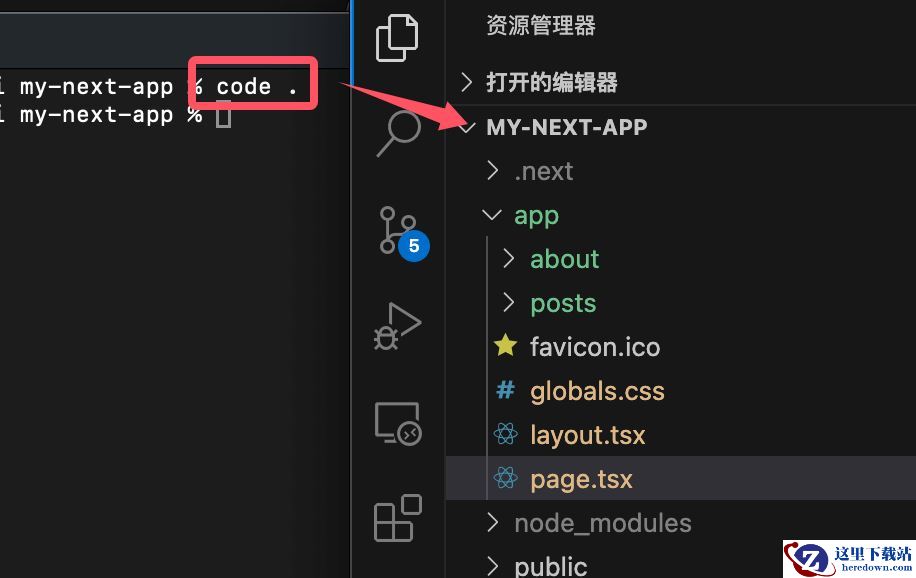
3、新窗口打开
如果你希望在一个新窗口中打开文件或文件夹,可以加上 --new-window 参数:
4、对比两个文件
通过 --diff 参数可以轻松对比两个文件的内容:
5、等待窗口关闭
如果你希望在 Cursor 窗口关闭后再返回终端,可以使用 --wait 参数:
6、禁用扩展
想要在不加载任何扩展的情况下启动 Cursor,可以用这个命令:
7、安装扩展
如果你想直接从命令行安装某个扩展,可以用以下命令:
8、列出已安装扩展
想知道当前都装了哪些扩展?用这条命令就行:
9、卸载扩展
如果某个扩展已经用不上了,可以直接卸载:
实用案例
快速打开当前目录 如果你正在某个项目的根目录下,想快速用 Cursor 打开它,只需输入:
这比用鼠标点来点去要快多了。
对比文件 想看看两个文件的不同之处?用这个命令:Cursor 会直接帮你打开一个对比视图,方便你查看差异。
多窗口操作 有时候你可能需要同时打开多个项目,这时候可以用 --new-window 参数:命令功能说明code <路径>打开文件或文件夹cursor .打开当前目录作为工作区cursor --new-window在新窗口中打开cursor --diff对比两个文件的内容cursor --wait等待窗口关闭后再返回终端cursor --disable-extensions禁用所有扩展运行 VS Codecursor --install-extension <扩展名>安装指定扩展cursor --list-extensions列出所有已安装的扩展cursor --uninstall-extension <扩展名>卸载指定扩展
命令功能说明code <路径>打开文件或文件夹cursor .打开当前目录作为工作区cursor --new-window在新窗口中打开cursor --diff对比两个文件的内容cursor --wait等待窗口关闭后再返回终端cursor --disable-extensions禁用所有扩展运行 VS Codecursor --install-extension <扩展名>安装指定扩展cursor --list-extensions列出所有已安装的扩展cursor --uninstall-extension <扩展名>卸载指定扩展使用感受
我觉得吧,Cursor 的命令行工具真的特别适合那些喜欢用键盘操作的开发者。它不仅能提高效率,还能让你在工作中更专注。比如说,我经常用 cursor . 打开当前项目目录,或者用 cursor --diff 对比代码文件,省去了不少麻烦。
最后嘛,感觉 Cursor 的命令行工具对日常开发帮助很大的,尤其是那些需要频繁切换项目或者管理扩展的场景。如果你还没试过,赶紧装一个试试吧!
加载全部内容
 龙之谷世界
龙之谷世界 家园攻防战
家园攻防战 武侠历险记
武侠历险记 修仙奇谭
修仙奇谭 新仙魔九界
新仙魔九界 弓箭传说2
弓箭传说2 黎明飞驰
黎明飞驰 时空猎人
时空猎人